Documents
Have you struggled to maintain a repository of all the product-related documents or important links at a single location and find them when required?
The Calibo Accelerate platform solves this problem by providing the Documents option at the product level. You can create a collection of all your product-related documents or add links to important documents, making it simple to locate and retrieve the required documents within a few seconds.
How do I add a document or link?
-
Sign in to the Calibo Accelerate platform, navigate to Products and select the required product.
-
On the product screen click the ellipsis (...) at the top right corner of the screen and click Documents.
-
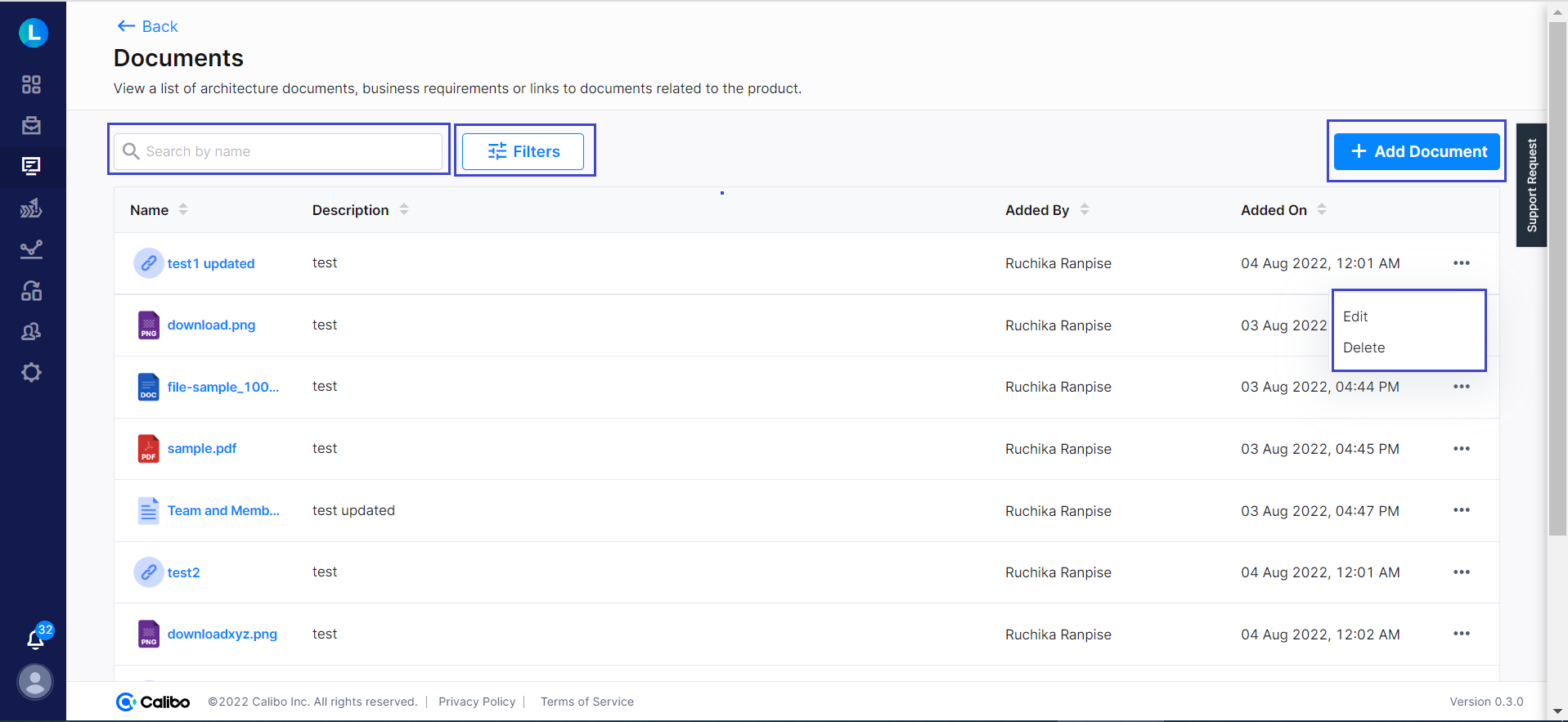
View the list of added documents, search for a specific document, or filter them based on user, type or period.
-
Click + Add Document. Select the type and provide the required information:
-
Link - Provide the URL, name, and description.
-
Document - browse to locate the document or drop a document. Provide the name and description of the document.
-
-
Click Add.
What other tasks can I perform on the added documents?
You can edit or delete a document or link that you have added.
Edit a Document or Link
-
Navigate to the Documents page.
-
Locate the document you want to edit.
-
Click the ellipsis menu (…) next to the document.
-
Select Edit. The Edit Document or Link page will appear.
-
Update the required fields:
-
Type – Choose whether it is a Document or a Link.
-
File/URL – Update the uploaded file or URL (if applicable).
-
Name – Update the document name.
-
Description – Add or modify the description of the document.
-
-
Click Save to apply the changes.
Delete a Document or Link
-
Navigate to the Documents page.
-
Locate the document you want to delete.
-
Click the ellipsis menu (…) next to the document.
-
Select Delete. A confirmation dialog appears.
-
Click Yes to confirm deletion. The document is permanently removed from the list.
-
Click No if you do not want to proceed with the deletion.
-
Managing Documents
You can view, search, and filter the added documents .
View Documents
-
View the complete list of all uploaded documents and links along with details such as Name, Description, Added By, and Added On.
-
If you click the document name, the file will be downloaded to your local system for viewing.
-
If you click the link name, the URL will open in a new window.
Search Documents
Use the Search by name field to quickly find a specific document.
Filter Documents
-
Click on the Filters button to refine the list.
-
You can filter documents based on:
-
Added By - Select the user who added the document.
-
Document Type – Filter by document type.
-
Created Between – Select a date range to view documents created within that period.
-
-
Click Apply to see results or Clear all to reset filters.
Is there a restriction on the file type or file size that I can upload?
-
The supported file types are: pdf, jpeg, jpg, png, doc, docx, p12, csv, xlsx.
-
The maximum permissible file size is: 10 MB.
 Recommended Topics Recommended Topics
|
What's next? View or Edit Product Details |